• Home
  • About 404TS
  • Contact

404 Tech Support

Where IT Help is Found

  • Articles
    • Code
    • Entertainment
    • Going Green
    • Hardware, Gadgets, and Products
    • Management
    • Network
    • News
    • Operating Systems
    • Security and Privacy
    • Software
    • System Administration
    • Talking Points
    • Tech Solutions
    • Web
    • Webmaster
  • Reviews
  • Media
    • Infographics
    • Videos
  • Tech Events
  • Tools
    • How do I find my IP address?
    • Browser and plugin tests
  • Get a Technical Consultation
You are here: Home / Articles / Operating Systems / Creating your first VM with Hyper-V on Windows 10

Creating your first VM with Hyper-V on Windows 10

2016-02-02 by Jason

VirtualBox is a popular free virtualization option for the one-off test machine. If you would instead like to gain a little formalization to your virtualization or just want exposure/experience to Microsoft’s Hyper-V, it is included with Windows 10 Pro and Enterprise SKUs.

Pre-requisites

To use Hyper-V, you need:

  • 64-bit version of Windows 10 Pro or Windows 10 Enterprise.
  • Virtualization enabled in your BIOS/firmware
  • CPU support for SLAT (Secondary Level Address Translation)

You can find which edition of Windows 10 you are running by checking the System properties. Right-click on the Start button and choose System. On the window that pops up, look for Windows 10 Pro or Windows 10 Enterprise under the ‘Windows edition’ section.
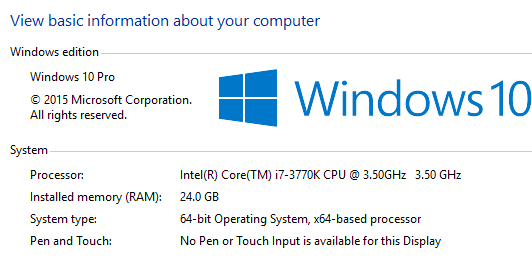
Win10System

To check whether your CPU supports SLAT, you can download and run the SysInternals tool CoreInfo from the Administrator command line. Elevate CMD and run coreinfo.exe -v. You’re looking for the EPT line to have an asterisk indicating support for Intel extended page tables (SLAT) or NP for an AMD CPU indicating support for AMD nested page tables.

coreinfo

Setup

Installing and using Hyper-V is pretty clear. You just have to know where to look. To install Hyper-V, open the Control Panel and choose Programs and Features. Then ‘Turn Windows features on or off’ and check the Hyper-V tree. Click OK and let the setup finish. At the end, allow it to restart your computer.

winfeatures

Once the computer comes back up from the restart, you can find the Hyper-V Manager on the Start Menu/All Apps under Windows Administrative Tools.
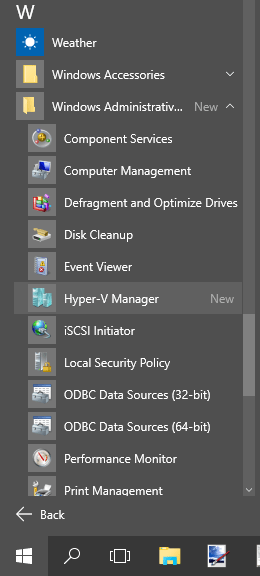
hyperv_start

The Hyper-V Manager is a classic Windows MMC snap-in. This makes the interface already pretty familiar. You have your VM hosts available on the left side, actions on the right, and content in the middle. You can right-click on your computer in the left pane and choose Hyper-V settings. That allows you to review core settings like the location for virtual hard disks, VMs, GPU, keyboard+mouse integration, and so on.

When you click on your server, you will find the right pane for Actions enables many actions such as the Virtual Switch Manager and Virtual SAN Manager. Go through these to use these components with your VMs. For example, you can create an External, Internal, or Private network switch to allow your VM to access the physical network adapter on your computer, other VMs and the host computer, or just other VMs, respectively.

HyperVManager

Once you have reviewed the Hyper-V settings and configured your network and other options to your liking, you can create your first virtual machine. Right-click on the server and choose New > Virtual Machine…

hyperv_new

The New Virtual Machine Wizard is very straight-forward. It asks where you would like to store the VM, its hard disk, generation 1 or 2 type of VM, how much memory, which network switch to plug into, and your virtual hard disk options, which also includes booting from an ISO to install your operating system.
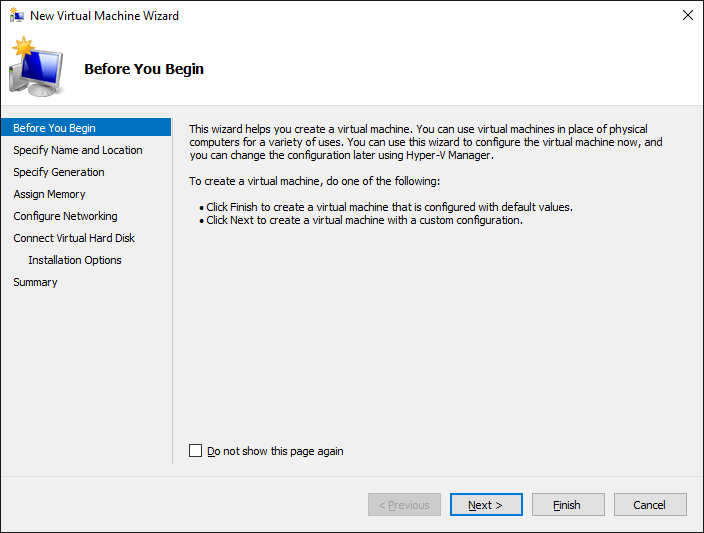
newvm_wizard

Once you finish the wizard, you should find your new machine in the middle pane. You can right-click on it to Start it up and Connect to view it through the console.

hyperv_vmrunning

From there, you have your first virtual machine through Hyper-V on Windows 10. You can explore using your virtual machine to its fullest such as using checkpoints to provide backups to configuration changes and other neat features of virtualization.

Filed Under: Operating Systems, System Administration

Trending

  • Google’s Terms of Service = Not Safe For Work?
    In Media, Security and Privacy, Talking Points
  • Light L16 camera is the first multi-aperture camera
    In Hardware, Gadgets, and Products
  • HP JetIntelligence optimizes toner for LaserJet printers
    In Hardware, Gadgets, and Products

Latest Media Posts

Find Out Where To Download SNES ROMs

Find Out Where To Download SNES ROMs

Multifunctional Video Conversion Tools – Wondershare Video Converter

Multifunctional Video Conversion Tools – Wondershare Video Converter

  • Popular
  • Latest
  • Today Week Month All
  • Windows Server 2012: Installing Active Directory Users and Computers and Group Policy Management Console Windows Server 2012: Installing Active Directory Users and Computers and Group Policy Management Console
  • Access to the resource [servershare] has been disallowed Access to the resource [servershare] has been disallowed
  • How to ‘Unblock’ multiple files at a time with PowerShell How to 'Unblock' multiple files at a time with PowerShell
  • Read the Event Logs on Windows Server Core Read the Event Logs on Windows Server Core
  • Make Adobe Reader and Adobe Acrobat use “Print as Image” setting by default Make Adobe Reader and Adobe Acrobat use "Print as Image" setting by default
  • How Virtual Reality Supports Mental Health Therapy How Virtual Reality Supports Mental Health Therapy
  • Key Strategies of Successful Coin Listing on Exchange Key Strategies of Successful Coin Listing on Exchange
  • Keeping Your Mac Healthy: A Comprehensive Guide to Maintenance and Troubleshooting Keeping Your Mac Healthy: A Comprehensive Guide to Maintenance and Troubleshooting
  • Making Distributed Software Development Work: Strategies and Best Practices for Managing Remote Teams Making Distributed Software Development Work: Strategies and Best Practices for Managing Remote Teams
  • customer contactless payment for drink with mobile phon at cafe counter bar,seller coffee shop accept payment by mobile.new normal lifestyle concept The Latest Innovations In Payment Technology
Ajax spinner

Elevator Pitch

404 Tech Support documents solutions to IT problems, shares worthwhile software and websites, and reviews hardware, consumer electronics, and technology-related books.

Subscribe to 404TS articles by email.

Recent Posts

  • How Virtual Reality Supports Mental Health Therapy
  • Key Strategies of Successful Coin Listing on Exchange
  • Keeping Your Mac Healthy: A Comprehensive Guide to Maintenance and Troubleshooting

Search

FTC Disclaimer

404TechSupport is an Amazon.com affiliate; when you click on an Amazon link from 404TS, the site gets a cut of the proceeds from whatever you buy. This site also uses Skimlinks for smart monetization of other affiliate links.
Use of this site requires displaying and viewing ads as they are presented.

Copyright © 2026 · Magazine Pro Theme on Genesis Framework · WordPress · Log in