• Home
  • About 404TS
  • Contact

404 Tech Support

Where IT Help is Found

  • Articles
    • Code
    • Entertainment
    • Going Green
    • Hardware, Gadgets, and Products
    • Management
    • Network
    • News
    • Operating Systems
    • Security and Privacy
    • Software
    • System Administration
    • Talking Points
    • Tech Solutions
    • Web
    • Webmaster
  • Reviews
  • Media
    • Infographics
    • Videos
  • Tech Events
  • Tools
    • How do I find my IP address?
    • Browser and plugin tests
  • Get a Technical Consultation
You are here: Home / Articles / Operating Systems / How to create a USB installer for macOS 10.12 Sierra

How to create a USB installer for macOS 10.12 Sierra

2016-09-20 by Jason

Creating a bootable USB drive macOS installer can save you time and bandwidth when you have a few Macs you want to update or you want a backup copy of your operating system installer. Fortunately, it’s pretty straight forward to create a USB installer for the latest Mac operating system, 10.12 Sierra, and the process is the same as OS X 10.10 Yosemite and OS X 10.11 El Capitan. The main difference is the name change from ‘OS X’ to ‘macOS’.

You will need at least an 8GB USB flash drive as the El Capitan beta is a 4.78GB download. You will need to download the macOS 10.12 installer through the Mac App Store. Once the download completes, do not continue with the install. Instead, follow these steps to create your USB bootable drive.

sierra_install_icon

Insert your USB drive to the Mac. Select the drive and format your USB drive as Mac OS X extended (journaled) using Disk Utility.

macossierra_erase

Note the volume mount point here, under Disk Utility, for the next step:

macossierra_mnt

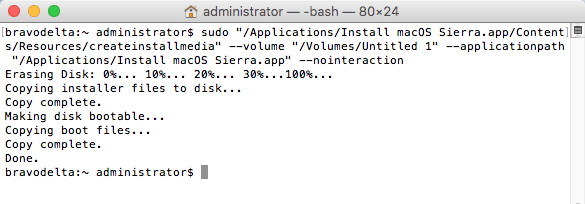
With an administrator account that has a password set, open up terminal and run this command:

sudo "/Applications/Install macOS Sierra.app/Contents/Resources/createinstallmedia" --volume "/Volumes/Untitled 1" --applicationpath "/Applications/Install macOS Sierra.app" --nointeraction

macos_sierra_terminal

Give it about 20 minutes to complete and your drive will be completed afterwards. Copying files…

macos_sierra_terminal2

And completed.

macos_sierra_terminal3

Your USB drive should now be ready to go. Insert it into a compatible Mac and hold down the option key while the Mac is booting up. Select the “Install macOS Sierra” drive and the boot will continue until it loads the OS X Utilities. Select Install macOS and continue through the macOS 10.12 install wizard.

macossierra_installer

Filed Under: Featured, Operating Systems Tagged With: apple, macos, usb

Trending

  • Apple unveils iPhone 6, iPhone 6 Plus, Apple Watch, Apple Pay, and iOS 8 release date
    In Hardware, Gadgets, and Products
  • From CES 2012 to the Shopping List
    In Hardware, Gadgets, and Products
  • tech spyHow Facebook advertisers can target you [infographic]
    In Infographics

Latest Media Posts

Find Out Where To Download SNES ROMs

Find Out Where To Download SNES ROMs

Multifunctional Video Conversion Tools – Wondershare Video Converter

Multifunctional Video Conversion Tools – Wondershare Video Converter

  • Popular
  • Latest
  • Today Week Month All
  • Access to the resource [servershare] has been disallowed Access to the resource [servershare] has been disallowed
  • Read the Event Logs on Windows Server Core Read the Event Logs on Windows Server Core
  • Increase IIS Private Memory Limit to improve WSUS availability Increase IIS Private Memory Limit to improve WSUS availability
  • How to ‘Unblock’ multiple files at a time with PowerShell How to 'Unblock' multiple files at a time with PowerShell
  • Setup your DFS namespace with DNS for compatibility in a mixed environment Setup your DFS namespace with DNS for compatibility in a mixed environment
  • How Virtual Reality Supports Mental Health Therapy How Virtual Reality Supports Mental Health Therapy
  • Key Strategies of Successful Coin Listing on Exchange Key Strategies of Successful Coin Listing on Exchange
  • Keeping Your Mac Healthy: A Comprehensive Guide to Maintenance and Troubleshooting Keeping Your Mac Healthy: A Comprehensive Guide to Maintenance and Troubleshooting
  • Making Distributed Software Development Work: Strategies and Best Practices for Managing Remote Teams Making Distributed Software Development Work: Strategies and Best Practices for Managing Remote Teams
  • customer contactless payment for drink with mobile phon at cafe counter bar,seller coffee shop accept payment by mobile.new normal lifestyle concept The Latest Innovations In Payment Technology
Ajax spinner

Elevator Pitch

404 Tech Support documents solutions to IT problems, shares worthwhile software and websites, and reviews hardware, consumer electronics, and technology-related books.

Subscribe to 404TS articles by email.

Recent Posts

  • How Virtual Reality Supports Mental Health Therapy
  • Key Strategies of Successful Coin Listing on Exchange
  • Keeping Your Mac Healthy: A Comprehensive Guide to Maintenance and Troubleshooting

Search

FTC Disclaimer

404TechSupport is an Amazon.com affiliate; when you click on an Amazon link from 404TS, the site gets a cut of the proceeds from whatever you buy. This site also uses Skimlinks for smart monetization of other affiliate links.
Use of this site requires displaying and viewing ads as they are presented.

Copyright © 2025 · Magazine Pro Theme on Genesis Framework · WordPress · Log in