RSoP, Resultant Set of Policy, and GPResult are two of those tools you absolutely have to know about if you’re using Group Policy in your environment or you’ll wish you had known about it sooner. Through the Group Policy Management Console you can see all the settings that a specific GPO will apply to machines and users in that OU but because the Active Directory is hierarchical you have to drill down into further Organizational Units in order to find if a more specific GPO might be affecting the target machines. If only we could see from the computer’s perspectives what group policies were being applied to it… We can! Using RSoP and GPResult, we can get exactly that kind of information.
RSoP
The Resultant Set of Policy MMC snap-in has a nice interface and is easily used. Just go to Start, Run and enter rsop.msc. This will flash up a quick screen with a summary of the environment it’s processing.

When the progress reaches 100%, it will pull up a report for the policies upon which the computer and the user are having applied. You can browse the list, which mirrors the Group Policy Management Console, and see which policies the machine is seeing, which might not quite match what you’ve set in the Active Directory server.

You can also use this to diagnose any errors. For example, if a software deployment isn’t coming through for some reason, you can verify that it has access to the policy and has received the command. You can also see any related errors to help your troubleshooting.

GPResult
Starting with Vista SP1, RSoP no longer shows all of the group policies that a computer might have being applied to it. Instead, Microsoft recommends that you use the command line tool GPResult.
Just open the Command Prompt and type:
gpresult
Being a command line tool, it opens up the possibilities to include it in scripting. There are a large number of options you can use with GPResult to get exactly what you want. You can use it to create a nicely formatted HTML or XML report and you can also use it to run remotely on another system and as a different user (provided you know the password).
The report will look something like this:
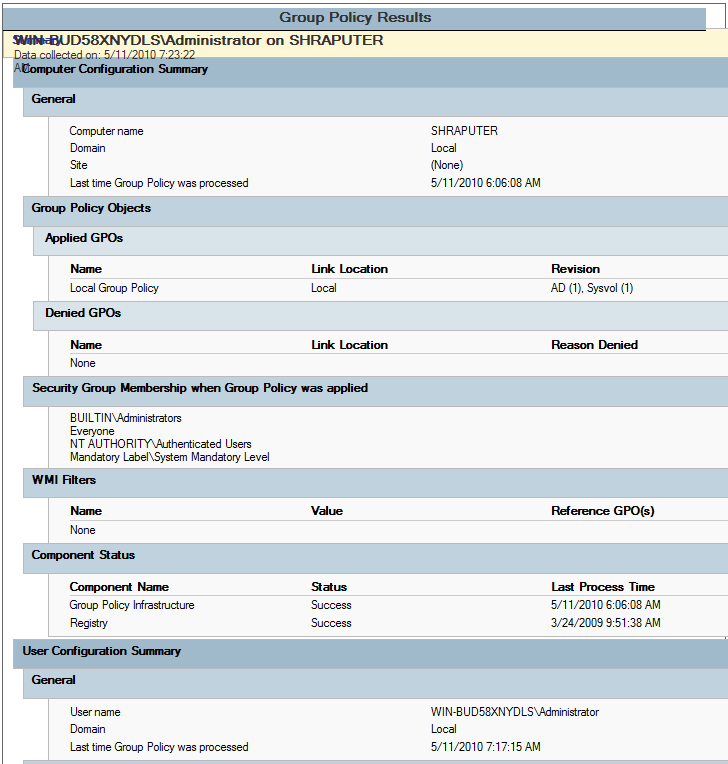
From the command line help file, GPResult has these options:
GPRESULT [/S system [/U username [/P [password]]]] [/SCOPE scope]
[/USER targetusername] [/R | /V | /Z] [(/X | /H) <filename> [/F]]Description:
This command line tool displays the Resultant Set of Policy (RSoP)
information for a target user and computer.Parameter List:
/S system Specifies the remote system to connect to./U [domain]user Specifies the user context under which the
command should execute.
Can not be used with /X, /H./P [password] Specifies the password for the given user
context. Prompts for input if omitted.
Can not be used with /X, /H./SCOPE scope Specifies whether the user or the
computer settings needs to be displayed.
Valid values: “USER”, “COMPUTER”./USER [domain]user Specifies the user name for which the
RSOP data is to be displayed./X <filename> Saves the report in XML format at the
location and with the file name specified
by the <filename> parameter. (valid in
Windows Vista SP1 and Windows Server 2008)/H <filename> Saves the report in HTML format at the
location and with the file name specified by
the <filename> parameter. (valid in Windows
Vista SP1 and Windows Server 2008)/F Forces gpresult to overwrite the file name
specified in the /X or /H command./R Displays RSoP summary data.
/V Specifies that verbose information should
be displayed. Verbose information provides
additional detailed settings that have
been applied with a precedence of 1./Z Specifies that the super-verbose
information should be displayed. Super-
verbose information provides additional
detailed settings that have been applied
with a precedence of 1 and higher. This
allows you to see if a setting was set in
multiple places. See the Group Policy
online help topic for more information./? Displays this help message.
Examples:
GPRESULT /R
GPRESULT /H GPReport.html
GPRESULT /USER targetusername /V
GPRESULT /S system /USER targetusername /SCOPE COMPUTER /Z
GPRESULT /S system /U username /P password /SCOPE USER /V
Are there any other tools out there that fall into that category ‘I wish I knew about that earlier‘ that you’d recommend? Let me hear them in the comments.