Home » Software »System Administration »Tech Solutions » Currently Reading:

Windows Installer Wrapper Wizard and a Better Firefox 3 Enterprise Deployment

December 18, 2008 Software, System Administration, Tech Solutions 186 Comments

Building off of the previous successful article, Make a .msi from Firefox 3 setup.exe for Enterprise Deployment, I have come up with an even better way to deploy Mozilla Firefox 3 via Group Policy and .msi installation. This article will provide a step-by-step guide to accomplish this, tested and proven working with Firefox 3.0.4.

Whereas the previous article allowed Firefox to be deployed as an .MSI through capturing the installation with WinINSTALL LE 2003, this article will be using the original installation package and using command line switches to direct the installation process. This means you will get the same results as doing an installation on one thousand machines that you would when downloading from Mozilla and installing on one machine by clicking through the install process. This now occurs without any tricky captures or chances for files to be manipulated.

Highlighted in and enabling this improved Firefox deployment method is the program Windows Installer Wrapper Wizard. Essentially what WIWW allows you to do is take a setup executable and wrap it inside of an .msi file. By doing this you can deploy the original setup.exe much faster than you can by making a capture and ensuring that it is perfect.

Update: Direct download available at bottom of article

In order to use Windows Installer Wizard, the setup.exe must accept command line switches (e.g. setup.exe /silent, /s, or /install). This requirement means that there is still a place for capturing the install, for those applications that are tricky or don’t have silent install capabilities.

Firefox 3, however, has those command line switches and we will use them to wrap the setup.exe file into a .msi so that we can deploy the software through the Group Policy with no ill side-effects.

To start, you’ll need to download two products:

Windows Installer Wrapper Wizard 0.2.0 (while the official site is down you can download my backup copy)

Mozilla Firefox 3.0.4 (or current version)

Next install the products:

Install the Windows Installer Wrapper Wizard on your computer. It can be treated as a standard application and doesn’t need any other reservations like the previous capturing method. Also install Firefox from the setup that you just downloaded.

I recommend renaming the Firefox setup executable to something much easier to work with than ‘Firefox Setup 3.0.4.exe’. Instead, rename it to something like ff304.exe and then copy/move it to your distribution folder, or where you store your .msi files to deploy through group policy.

Now run through the Windows Installer Wrapper Wizard:

Launch the Windows Installer Wrapper Wizard. You’ll find it under the Start Menu, All Programs as WIWW 0.2.0.

Click Next to get past the introductory window.

The next window will prompt you to create a new Windows Installer msi file. With that radio button selected, hit the browse button. This is essentially asking where you want to save your MSI file. I would recommend that you save it at the same location you just copied the Firefox setup executable, your distribution folder or where you normally store .msi files to deploy through group policy. (This location is rather important because the permissions on the folder need to be such that all of your users and computers will be able to access the folder. If the permissions are wrong, your Group Policy install assignment will fail.)

Windows Installer Wrapper Wizard

Name your .msi file something similarly easy as the setup file, like ff3.msi, and hit Save to return to the original window. Then click Next to go onto the next window.

This next window is where you will specify the commands to install the program. Click the Add button for a new window to pop-up. Browse to the Firefox setup.exe copy in your deployment directory along with that, you should add the command line parameter ‘/S’. Your Program to Run window should look like the screenshot below. With those settings configured, hit Ok. Leave ‘Reboot the system at the end of installation.’ unchecked as it is not needed for installing Firefox. Click next to proceed to the uninstall commands window.
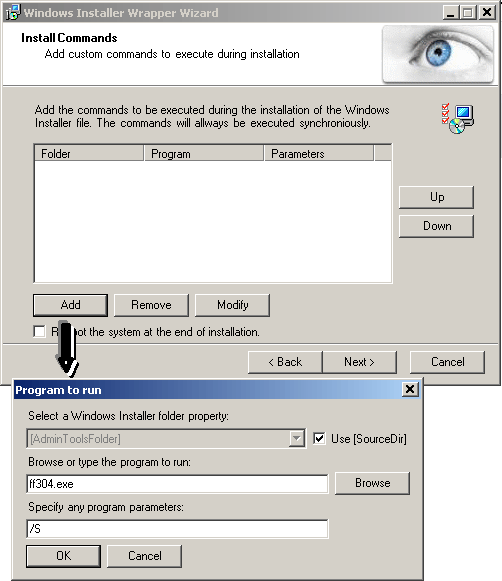
wiww2

The next window after the install commands contains the instructions for the uninstallation of the program. This is important because if you use the options for deployed software to automatically uninstall itself if you delete the policy, it can actually uninstall the software.

Click the Add button so we can add the uninstall commands. Firefox uses a separate executable to uninstall itself. Some programs use the same executable to uninstall themselves as they used to install, but with a different switch like /U. For other programs, you’ll have to figure out this information.For Firefox, change the drop-down to say [ProgramFilesFolder].

WIWW uses variables to reference the folders in case it is different from one machine to the next. Whereas with the install, we checked the box for ‘Use [SourceDir]‘, this meant it would find the executable in the same directory that the MSI is running from. The uninstall executable for a Windows XP/Server 2003 machine will come from C:Program FilesMozilla Firefoxuninstallhelper.exe. So choosing [ProgramFilesFolder] takes care of the C:Program Files part.

Now hit the browse button and select the C:Program FilesMozilla Firefoxuninstallhelper.exe application. You’ll notice that after you select it, what gets entered in the text box is just the Mozilla Firefoxuninstallhelper.exe part. This part gets combined with the [ProgramFilesFolder] selected above to complete the entire location. We’ll need to specify another switch to make sure the uninstall completes in its silent mode, without need for user interaction. In order to do that, put a /S in the box for program parameters. Your setup should match the screenshot below.

wiww3

Click next to move onto the Product Appearances and Requirements page. Here you can configure what options are available in the Control Panel, Add/Remove Programs component. For Firefox, the ‘Disable the Change button’ and ‘Disable the Repair button’ should be checked as Firefox’s setup does not utilize these functions. You can also prevent it from even being listed so that users cannot remove the application.

You can also set the minimum requirements for the application, like Windows XP SP3 or Windows 2000 SP4.

wiww4

Hit the Next button to proceed to the Package Meta Data and Language options. This will be the name listed in the Add/Remove Programs control panel component. I would recommend:

Product name: Mozilla Firefox 3
Product version: 3.0.4 (or current version numbering. Yes, 3.0.5 just came out while I was writing this…)

wiww5

After you are satisfied, hit Next to proceed to the summary page. This will provide a summary of all the options we just selected. If you are content with them, hit Next to generate the .msi or hit Back to make any changes. After the .msi is generated in the location you provided, it will confirm this and tell you the location when it successfully completes. Hit Finish and you’re almost all done.

The final steps are to make the Group Policy for deployment. Add a new standard package and choose the .msi you just created through the Group Policy Management Console. The only other option you might choose is to ‘Uninstall This Application When It Falls out of the Scope of Management’. This would allow you to control the software more through the group policy. If you delete the group policy or remove a computer from a group that has this policy affecting it, the software would be uninstalled. This can be particularly useful for new versions. When Firefox 4 comes out, you could just delete this policy and make a new one to install Firefox 4. This would serve the dual purpose of uninstalling the older version and installing the newer version.

Any questions, just use the comments below.

Bonus Content

I believe you can customize the default Firefox settings before it is deployed. Open up the Firefox setup.exe downloaded from Mozilla with 7-zip or a comparable zip/extraction program.

ffcustom11

After you have opened the archive, drill down to localizeddefaultsprofile and you will see where you can change the default bookmarks deployed. If you go up one directory to the ‘defaults’ folder, you will also see all the entries for the default search providers.
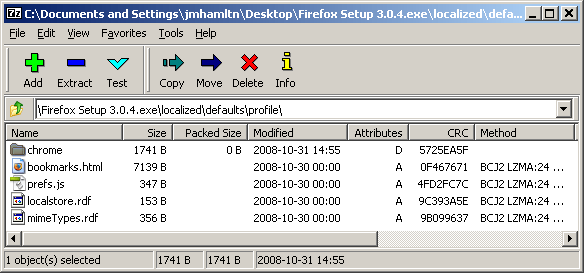
ffcustom2

I have to imagine you could edit these files or provide your own alternatives to change the default deployment to people that have not yet setup a Firefox profile.

Can anyone confirm or explain how one would include extensions into the defaults?

Update: You can download the following .msi file from my site here. It includes the above methods. You’ll also need to download the latest Firefox install from Mozilla: Mozilla Firefox 3.0.6.

Step 1: Download my firefox3.msi

Step 2: Download the latest version of Mozilla Firefox 3

Step 3: Put the firefox3.msi and the setup file downloaded from Mozilla in the same deployment directory.

Step 4: Rename the Mozilla setup file to firefox3.exe

Step 5: Configure your Group Policy deployment using my firefox3.msi file.

Done!


Related posts:

  1. Make a .msi from Firefox 3 setup.exe for Enterprise Deployment
  2. Disable Firefox's 'Set as Desktop Background' option
  3. Mozilla agrees to Extended Support Release for Firefox to remain in the enterprise
  • http://www.millerhare.com Mike Trinder

    I’ve just built an MSI with IETab included as an extension by doing exactly what you surmise – plonking a previously installed extension’s files in nonlocalized\extensions works fine.

  • http://www.404techsupport.com 404 Tech Support

    Awesome! Great to hear and thanks for the feedback! It will really help anybody else that views this article.

  • Bob

    I used Windows Installer Wrapper to create an msi package so I can deploy using GP, but —– Firefox 3.05 did not install on the computer.

    I tried it on two different computers and no luck. I checked the event viewer on both machines – W2K SP4, and XP Prof. SP3. The event shows —-

    The assignment of application Firefox 3.0.5 from policy firefox install succeed

    The install of application firefix 3.05 from Policy Firefox install succeed.

    Changes to software install setup were applied successfully.

    I did see “installing managed software” on both systems, in the windows splash screen which tells me something was going on for a few minutes, but no FF installed. Can someone offer some assistance ?

    Thanks,
    Bob

  • http://www.404techsupport.com 404 Tech Support

    The event log seems to indicate that everything succeeded. I know when I was first having problems with the commands or access permissions to the install file, the event log accurately showed that the install failed.

    Have you checked the Program Files directory to see if anything happened? (Install completed but no shortcuts were made, Mozilla folder was made but nothing else, etc.) Anything like that might give you a clue as to what happened.

    To test out the .msi that you’ve created, you can run it like a standard install file and see if everything goes through fine.

    Feel free to post back if you find any more clues.

    Best of luck!

  • http://www.404techsupport.com 404 Tech Support

    Here’s the thought Bob. Since the install is completing successfully, it sounds like access to your .msi file is fine. With that in mind, it sounds like the problem is with the commands inside of your .msi.

    A) Make sure you have the Firefox 3.0.5 install in the same directory as the .msi.
    B) Verify permissions allow users/computers to read the Firefox 3.0.5 setup.exe
    C) Double-check the commands that you used in making the .msi. Use SourceDir (since the Firefox setup is in the same directory). Recreate the .msi if you need to.

    If that still doesn’t work, try running the .msi on one of those computers that failed and see if the software installs. Please post back with the results and I’ll try to help you further.

  • Bob

    Thank you for the replies !!

    Yes FF.exe and msi are in the same folder I created called Mozilla Firefox, the folder is shared. I have two msi’s in the same OU for software install, one being Open Office the other FF, the folders have the same permissions, and OO installs no problem.

    The only switch I used was /s for the install, I did not set the option to un-install. I tried again and still no good with the FF install.

    Also — for fun — I created a seperate OU called Firefox install instead of using one OU with 2 packages and that did not work either. I followed the setup exactly, just left out the uninstall, but no luck.

    Thanks,
    Bob

  • http://www.404techsupport.com 404 Tech Support

    Interesting results…
    Might the installer be case sensitive? You said you put /s, but I used /S which worked.

    Have you tried just running the .msi (not going through Group Policy, but just double-clicking on it)? Does that install it?

    I created a .msi using Firefox 3.0.5 (only take about 1 minute :) ) and it worked for me.

    You can try using these files for testing purposes.
    FF305.exe – The setup.exe downloaded straight from mozilla and renamed.
    FF305.msi – The .msi I created with WIWW. (has uninstall added as well)

    Try creating a new GPO with this .msi. As you know, both files should be put in the same directory for deployment. Let me know how this turns out for you.

  • Bob

    I tried the two files you created – put them in my FF folder on the server, created a new package pointing to your file name FF305.MSI, and —- it WORKED !!!!!! you turned on a light that you used a cap S, where I used lowercase. I re-read the documentation and they also use a cap S. I assume that is what I did wrong. But yours worked on a production system. I noted my documentation for when FF 3.06 comes out. Thank you for your assistance.

    Bob

  • http://www.404techsupport.com 404 Tech Support

    Glad to hear it worked out for you!

  • http://www.404techsupport.com 404 Tech Support

    Anybody could actually take the .msi file I created and download the setup executable from Mozilla and get a deployable Firefox.
    1. Download the .msi from 404 Tech Support.
    2. Download the Firefox install file from Mozilla.
    3. Put both of these files in the same directory (where your deployment files reside).
    4. Rename the Firefox install file to ff305.exe (even if it’s a newer version, it’ll work with this .msi if named ff305.exe)
    5. Create your deployment like usual with the GPO pointing at the .msi you downloaded from this site.

  • mike

    How to disable autoupdate feature? Thanks!

  • http://www.404techsupport.com 404 Tech Support

    Hi Mike,

    If you want to disable autoupdate on an instance where Firefox is already installed:
    Go to Tools, Options.
    In the window that pops up, go to the Advanced tab and Update sub-tab.
    There, uncheck Firefox, Installed Add-ons, and Search Engines if you want to disable auto-updates for those three components.

    If you want to disable it before deploying the software using the method listed in this article, download the Mozilla Firefox setup executable.
    Download and install 7-Zip (linked to in original article).
    Open the Firefox setup.exe with 7-zip. (Right-click on the setup.exe and use the context menu to go to 7-Zip -> Open Archive.
    Then using 7-Zip drill down to:
    Firefox Setup 3.0.7.exe\nonlocalized\defaults\pref\ and extract firefox.js to a temporary location (like your desktop) so we can edit it real quick.

    Once you have firefox.js extracted, open the file in Notepad or Notepad++. Starting around line 49, you’ll see lines of code similar to this:
    // App-specific update preferences

    // Whether or not app updates are enabled
    pref("app.update.enabled", true);

    // This preference turns on app.update.mode and allows automatic download and
    // install to take place. We use a separate boolean toggle for this to make
    // the UI easier to construct.
    pref("app.update.auto", true);

    Update both of the lines that start with pref( and replace the word ‘true’ with ‘false’ (without the quotes). Then save this file and drag it back into the 7-zip window at the same location to replace the file same name.

    This should set the default behavior of your deployed Firefox to have a disabled autoupdate setting.

  • mike

    I was referring to the method for use with deploying. Thanks for the info. But 7z nor WinRAR can add files back into an exe archive it appears. Perhaps I can just extract the FF3 files and run setup.exe from the msi.

  • http://www.404techsupport.com 404 Tech Support

    Yeah, I found that out as I tried to do it myself. I got side-tracked looking into the problem. Sorry I didn’t post back to drop off that info. I’d be interested to know the reason why that is though.

  • Guest

    I'm having problems with the deployment. I've used both my msi and your generated msi, they work nice if you manually exec them (the problem is that you have to click through next next steps) but when the GPO is applied I see "Installing Mozilla Firefox…" for a few seconds and nothing happens, no install. The win log gives me correct messages about successful installation. What am I missing here? It seems to be a problem with the msi generation because I tried the frontmotion.com Firefox msi packages and work perfect.

  • Guest

    Thanks for your answer. So, what should I do? I've tried to change the .exe permission to allow "All users" to read a exec it, with no success. Should I set the permissions to a specific group?

    Regards.

  • Guest

    I tried to simulate the MSI deployment and the MSI log doesn't give me any error messages, the msi does not install at all: http://pastebin.com/f262b46a8

    I've created a security group with all domain computers, and applied the GPO to this group, no success.

    I'm completely lost.

  • http://intensedebate.com/people/404techsupport 404techsupport

    I'm sorry that I don't seem to be able to assist you. I can only relay that this method, as documented in this article, has worked numerous times for me with Firefox and other application and for other individuals.

    Please post back if you do find a solution to your problem so that others may benefit.

  • dzx

    Hi,

    I would justl ike to say thank you very much for posting this extremely easy to follow guide. I've been looking for a tutorial like this for days and this is just what I was after.

    Even the folks at MSFN are doing all sorts of whacky things to get Firefox MSI installers. Additionally like you I wasn't happy with Frontmotion packages either, and the DIY method seems to be the best.

    I have configured my Firefox installer to set the home-page and adjust proxy settings (use our auto proxy file) as well as other tweaks (mostly done in all.js and browser.properties). I can confirm it works well.

    Additionally the installer has no problems updating from Firefox 3.0.03 to 3.0.10. It simply installs right over the old version.

    I still have some further testing to do and I am yet to make it a group policy object but I will be doing so very shortly.

    Again, thank you for the guide and for recommending Windows Installer Wrapper Wizard – didn't even know it existed until your post.

  • Diego Escuder

    Can this be used with Frontmotion administrative templates? Thanks!

  • http://www.404techsupport.com 404techsupport

    From my understanding, Frontmotion does not have their own administrative templates. They use an open-source project called FirefoxADM: http://sourceforge.net/project/showfiles.php?group_id=129699

    You can use the FirefoxADM templates with the method of deploying Firefox I documented here. You can find some great instructions from the Developer’s site here:
    http://homepages.ed.ac.uk/mcs/FirefoxADM/ADM_Deploy.pdf

    The main blog for FirefoxADM is here: http://ick2.wordpress.com/

    I would recommend against Frontmotion just so you know entirely what is going on with your computers. The method with WIWW is very easy and will work with FirefoxADM.

  • http://baraboo.k12.wi.us/ Mike Pullen

    Thanks for great tips here!

    Regarding the comment made in March the 7z can’t recreate the exe– I dug a little, and found out this:

    - you add the “extracted” folder to the 7-Zip File Manager, and create a “.7z” compressed file.

    – use 7-Zip Silencer from http://www.mystercrowley.com/sw_7zs_en.php to make the .7z file an SFX which will call “setup.exe”…

    Works like a charm to create a “customized” Firefox by editing prefs.js etc al!

    Thanks!
    Mike

  • http://www.404techsupport.com Jason

    Cool! Good work, Mike. Thanks for posting it here!

  • brownhornet

    Firefox can be a real pain in a windows domain setup I have found. I haven’t gone down the path of creating a MSI at our organisation. (FF is our pref over ie as some features of moodle display very poorly in ie). Anyway we image so not a huge deal but would love to get MSI working. I use this…
    http://support.mozilla.com/tiki-view_forum_thread.php?locale=ro&comments_parentId=12272&forumId=1

    The major issue I found on domain is that everytime a user logon on a machine in the domain it always asked them registatation/default browser question. Got around it by using above which took me forever to find. Happy to share. Maybe someone can suggest how this can be successfully implemented in the MSI package.

  • KrtRcr31

    I have followed all the steps directly laid out above and not having any success with 3.5.2. If I manually run the created MSI file it installs fine but not silently. If I try to run it through GPO, it hangs on the “Installing managed software Mozilla Firefox 3.5.2…” screen (I’m assuming waiting for user interaction perhaps). Any ideas? I have verified both the exe and msi are in the same location on a network share that all users have rights to and that I did add the /S silent switch as indicated above. Thanks in advance for any insights.

  • http://www.404techsupport.com Jason

    I fixed the link to the firefox3.msi that I created above. Please try downloading that, put it in your distribution directory along with the Firefox 3.5 setup executable renamed to firefox3.exe and try deploying that .msi.

    I tested distributing FF 3.5 and it worked out just fine.

    Also, when running the firefox3.msi by double-clicking it, it does not install silently, only when running through a Group Policy.

    Let me know if that works for you.

  • Tim

    Jason,

    I didn’t see a link that you posted above in your posts. What was the date of that post? Were you posting under a different name? I’m just trying the 3.5 installation and was having similar problems to KrtRcr31. I just am not sure which post you were talking about. Thanks in advance,

    ~Tim.

  • http://www.404techsupport.com Jason

    Tim,

    The link I mentioned was referring to the firefox3.msi that I created. It’s at the bottom of this post in the Update section. You can download my firefox3.msi here:

    http://www.404techsupport.com/blog/firefox3.msi

    Hope that helps,
    -Jason

  • Tim

    Jason,

    I followed what you said by putting my Firefox 3.5.2 (renamed as firefox3.exe) into the same directory as the firefox3.msi that I downloaded from you. It appeared to be installing on reboot, although it took around 35 minutes for it to get to the windows log on screen. Once I got into windows, a box popped up which basically walked me through a manual install. Did I do something completely wrong? Sorry to keep bothering you! :)

    ~Tim.

  • http://www.404techsupport.com Jason

    Tim,

    Apparently Mozilla changed the silent install switch for Firefox 3.5. I walked away from my test machine while it was installing so I wasn’t aware of the length it took.

    Try creating the MSI using the instructions above but replacing the switch for install to ‘-ms’.

    I’ll do some further testing and update the post above with the new instructions.

    -Jason

  • Wing

    Thanks 404techsupport for the step-by-step procedure. I followed the direction above and it works well on making .msi for thunderbird 5.0 & 6.0. Very nice article.

  • Alex

    What user is used when running an installation through the GPO? Simulating the install/uninstall as a user seems to work fine, but when run through the GPO I’m missing user variables and the uninstall doesn’t work. You mention above in a post the Computer account is used, but I’m not sure what that means. Also, if user variables are set during the installation for the installation user, will those user variables be present for other users? Thanks,

  • http://intensedebate.com/people/404techsupport 404techsupport

    It sounds like you're doing everything right so it leads me to believe that this is a permissions issue with the setup.exe. Running it manually will use your user credentials, running it through the GPO will use it as the Computer account.

    The FrontMotion MSI's are made using a capture method instead of a true install. That means all of the install files are held within the MSI, which might be the difference in your case. You can see how to do that method here: http://www.404techsupport.com/2008/09/22/make-a-m

    To clarify about the event log: You'll get a note that the setup completed successfully as long as the MSI runs from start to finish. Unfortunately, this doesn't provide any feedback about the setup.exe running inside of the MSI unless that executable does its own logging.

  • http://intensedebate.com/people/404techsupport 404techsupport

    Do you have a security group for the computers you're trying to install it on? Remember for a GPO directed install, the computers will be installing it, not the user accounts.

    You might also check out this article on simulating an MSI deployment:
    http://www.grantburton.com/2008/09/21/simulate-a-

Comment on this Article:


Sponsors

Keytech Managed Services
Keytech provide Managed IT services to ensure your valuable data and network are protected and running to an optimal level.

Dedicated Server Hosting
BODHost.com offers a wide range of managed dedicated servers with 100% uptime and 24x7 dedicated support.

Do It Smarter Managed IT Services
Do-It-Smarter Managed IT Services - Managed backup, hosted email, systems management, network audits, managed security & disaster recovery.