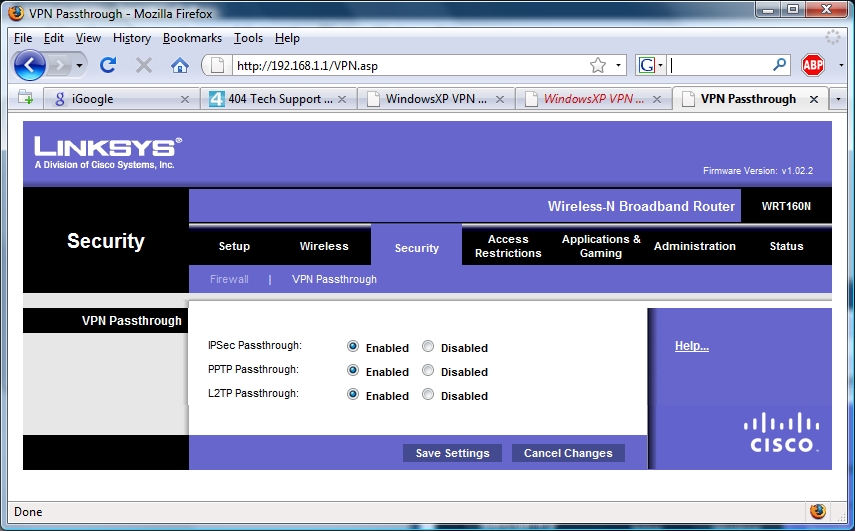
I recently had to purchase a new router as my WRT-54G Linksys router had stopped working problem free. I purchased a Linksys WRT160N Router as a replacement. Unfortunately, since using the new router my VPN to work stopped connecting successfully. It would time out when trying to verify the user name and password.
I confirmed all settings: VPN passthrough was enabled, I tried putting my computer in the DMZ, and the VPN software worked if I plugged the cable modem directly into the computer.
What finally worked was forwarding four (4) ports to my computer under Port Range Forwarding.
You’ll want to have a static IP or a static DHCP entry configured for your computer. A static DHCP entry is my preferred way of configuring this. (While talking to Linksys tech support, the technician insisted that only a static IP would work. I went through the motions and kept my static DHCP entry and IP address for my computer and it worked. I was happy to prove him wrong.) As long as you have a static IP entry (configured through Windows) or a static DHCP entry (configuration details below) you won’t have to change the port forwarding configuration each time your IP changes.
A static DHCP entry works by associating the MAC address (a hardware address to uniquely identify your network card) to an IP address. This means, no other machine on the network is going to grab it. It’s basically a static IP configuration but using the ease of DHCP.
Log into the router configuration page. Open a web browser like Firefox and type in the address bar: 192.168.1.1.
Log in with your credentials. (Default user: admin Default password: admin) (You should change these.)
On the page that it opens up to (Setup tab, Basic Setup sub-tab) you’ll see a button for DHCP reservations. Next to the button, the DHCP server should be enabled. Click on the button to open a new window. If your computer is currently connected to the router, you should see an entry for it at the top of the new window. Select the check box next to your computer and click the “Add Clients” button to create a DHCP reservation for your computer. Write down the number under IP address for later.

If there is more than one machine listed you can identify yours by either the Host Name, IP address, or MAC address on the DHCP reservations window. To see the information for your computer, open a command prompt (Go to Start, Run… and enter cmd). In the command prompt, type: ipconfig /all
This will give you a window like below. Match either your Host Name, IP address (or IPv4 address), or your MAC Address (listed as Physical Address and indicated below). With this information you can also create a manual entry in the DHCP reservations window for a different IP address. Click the Save Settings buttons when you’re done. Either way you go, or if you configure a static IP address in windows, just record the IP address you’ll be using and move on to the next step.

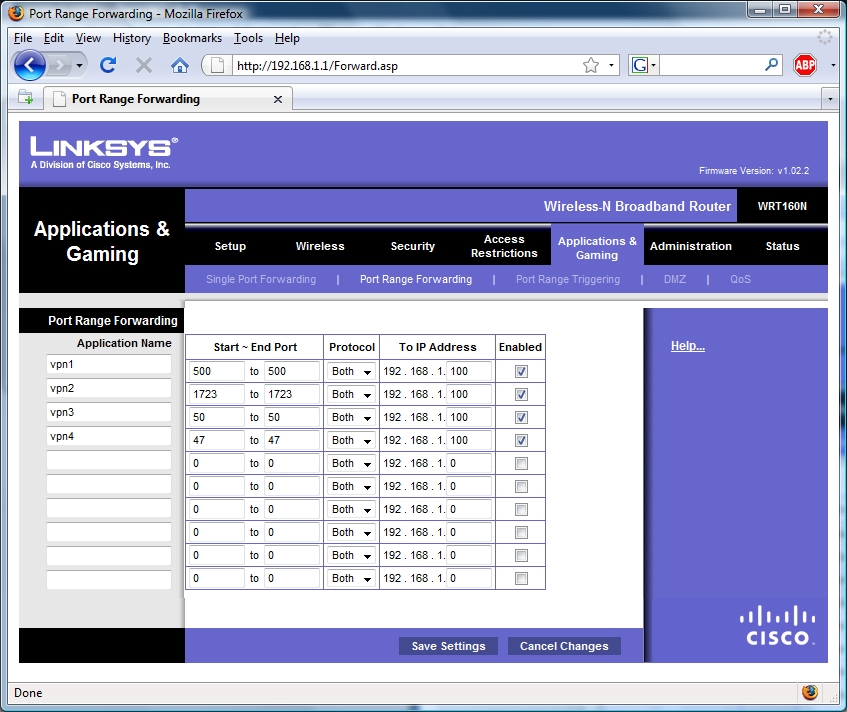
Back in the Linksys router configuration site, go to the Applications and Gaming tab and the Port Range Forwarding sub-tab. We’ll need to add four rows with the following configurations for Name, Start Port, End Port, Protocol, To IP Address, and Enabled.
| Name | Start Port | End Port | Protocol | To IP Address | Enabled |
| vpn1 | 500 | 500 | Both | 192.168.1.100 | Checked |
| vpn2 | 1723 | 1723 | Both | 192.168.1.100 | Checked |
| vpn3 | 50 | 50 | Both | 192.168.1.100 | Checked |
| vpn4 | 47 | 47 | Both | 192.168.1.100 | Checked |
The To IP address will be the one that you configured and wrote down in the above steps. 192.168.1.100 is the IP address I have reserved for my computer. Your entries should look like the screenshot below (click to enlarge).
Click the Save Settings button and you should be able to try out your VPN and find it working now.
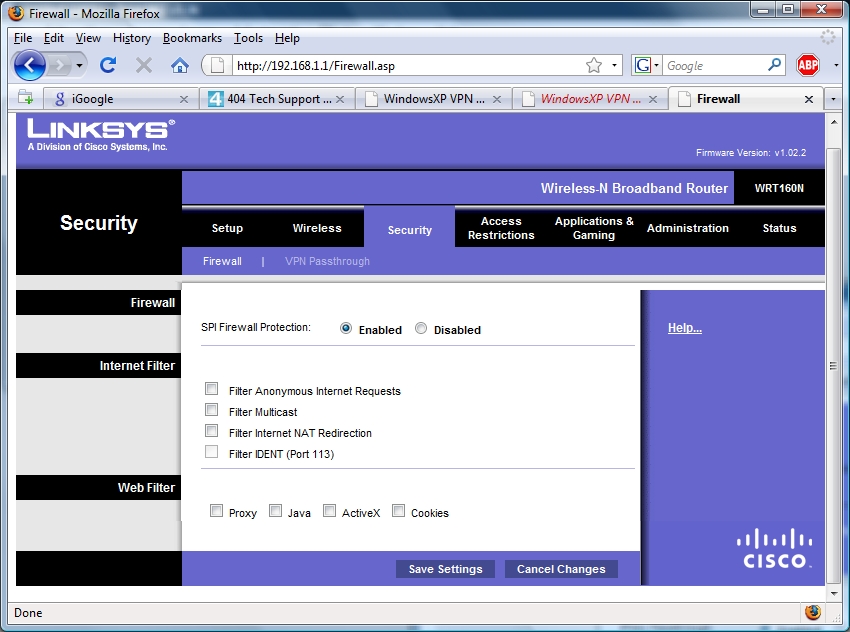
If you’re still having troubles,check the settings under the security tab. Verify all the boxes are unchecked and the firewall is enabled.
Under the Security tab, VPN Passthrough sub-tab, make sure the three different pass-through options are enabled.