Google is now offering SSL-enabled searching with the Google blog announcing it last Friday. SSL searching for Google is enabled by visiting the site with https:// in front of the usual www (note the 's'). Using SSL where possible allows you to communicate securely between your browser and the website, meaning that any ISPs, routers, governments, or other prying eyes between you and the server on your path along the Internet cannot just read the packets as they come over the wire.

When you search on https://www.google.com, an encrypted connection is created between your browser and Google. This secured channel helps protect your search terms and your search results pages from being intercepted by a third party on your network.
" />

Home » Media »Security »Software » Currently Reading:

Make Your Firefox Search Engine use Google’s SSL (https) Search for Security Reasons

May 24, 2010 Media, Security, Software 12 Comments


Google is now offering SSL-enabled searching with the Google blog announcing it last Friday. SSL searching for Google is enabled by visiting the site with https:// in front of the usual www (note the ‘s’). Using SSL where possible allows you to communicate securely between your browser and the website, meaning that any ISPs, routers, governments, or other prying eyes between you and the server on your path along the Internet cannot just read the packets as they come over the wire.

When you search on https://www.google.com, an encrypted connection is created between your browser and Google. This secured channel helps protect your search terms and your search results pages from being intercepted by a third party on your network.

After reading How To Make Google HTTPS (Secured SSL) Search Default in Google Chrome over at My Technology Guide, I started wondering about how to do the same thing from within Firefox. I came up with a few different solutions.

First, a little bit more about Google SSL Search. You can access the secure search by visiting the site at https://www.google.com but there are 3 other ways in Firefox to tell that you’re on the secure search and they should all be there to ensure that you’re protected. The other browsers have similar indicators but may be in different locations.

Signs you’re searching with SSL-secured Google:

  1. The address begins with ‘https’ instead of ‘http’.
  2. Between the Favicon and the address bar, google.com is in blue (could be green if they change certificate types).
  3. Google SSL has a new logo. Notice it has a lock, ‘SSL’, and the familiar ‘beta’ tag.
  4. Firefox shows a lock, indicating that this connection is secure.
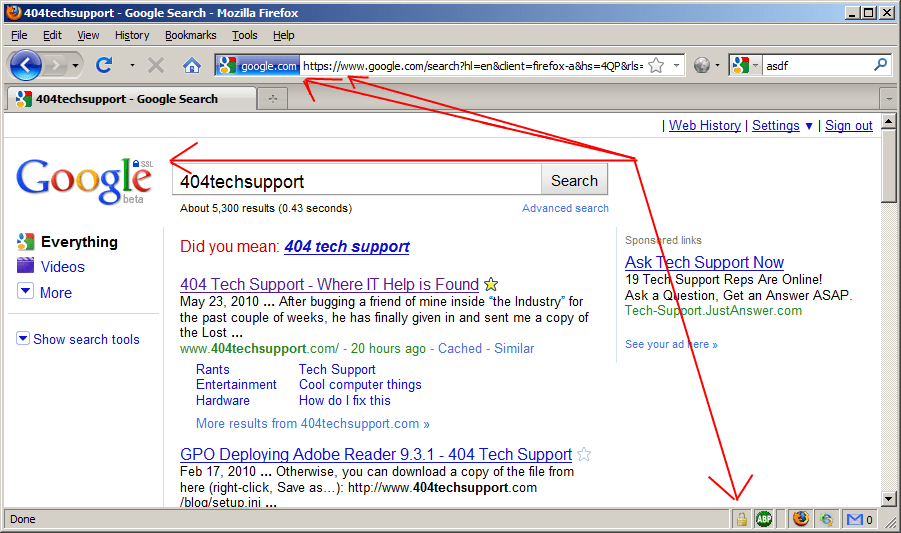
If you click on the blue spot in the address bar or the lock in the lower-right, you can view the certificate information. The connection is currently using RC4 128 bit encryption.

For more information about Google’s new SSL search, view their Help page.

There are two locations in Firefox where searches can initiate from. To make sure you’re protected, we’ll want to update both. The keyword search can happen in the address bar if something is mistyped or you just type your query directly into the “Awesome Bar”. The other location is the obvious search engine location.
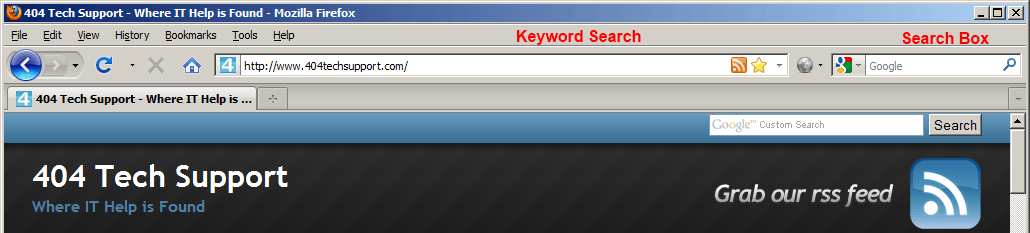
To modify the Keyword Search, we’ll need to get into the nitty, gritty configuration of Firefox. Go up to the Address Bar and type in:
about:config

Click the ‘I’ll be careful, I promise’ button.

Type ‘search’ into the filter box to reduce the number of objects and then double-click keyword.URL to modify its value.

Modify the value from ‘http://www.google.com/search?ie=UTF-8&oe=UTF-8&sourceid=navclient&gfns=1&q=’ to ‘https://www.google.com/search?ie=UTF-8&oe=UTF-8&sourceid=navclient&gfns=1&q=’. (Just adding the s to https).

Then hit OK and test it out by typing a query like ’404 tech support rocks’ into the address bar. The Google results should show up in Google’s SSL search.

In order to modify the Search Box, I first came up with a bit of a hack that consisted of replacing ”http://www.google.com/search’ in the  C:\documents and settings\[user name]\appdata\Roaming\Mozilla\Firefox\Profiles\[profile name]\search.json file.

That worked and “replaced” the usual Google Search with a more secure one but, like I said, it was a bit of a hack. Instead, I’ve come up with a better way of doing it by making a legitimate Firefox Search Engine. You can
download it from the official Firefox Add-ons page here: https://addons.mozilla.org/en-US/firefox/addon/161977/

Just click the ‘Add to Firefox’ button and then confirm that you want to add it in the ‘Add Search Engine’ modal dialog box that pops up.
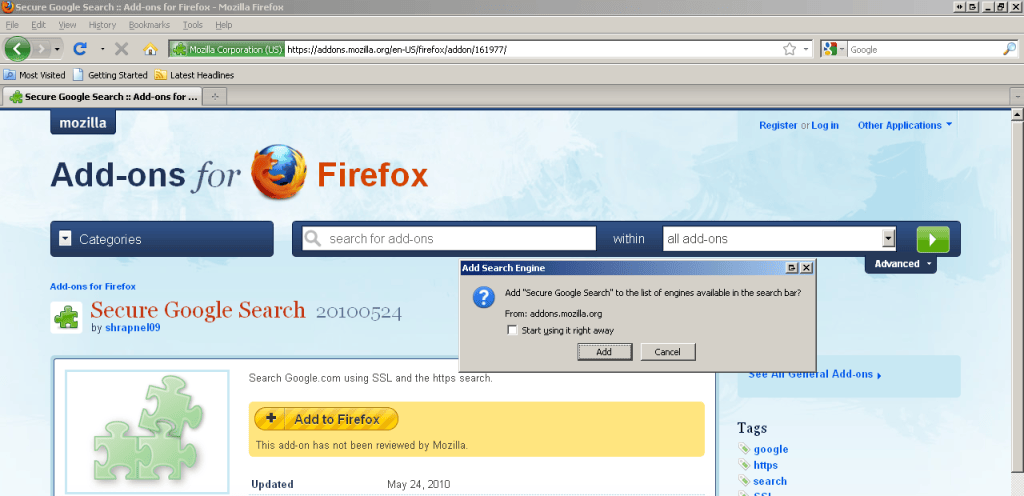
After that, you’ll be able to use ‘Secure Google Search’ and go directly to the https version of Google Search.

Happy secure searching!


Related posts:

  1. Google Releases Search Results Blocklist Chrome Extension, Crowd-Source Ranking Next?
  2. Native HTTPS Comes To Wikipedia
  3. WebGL In The News For Security Concerns in Firefox 4 and IE9
  • http://www.mytechguide.org Mezanul

    Both Firefox and Chrome are my favorite browsers. After getting Google secured search in Chrome, I was thinking how to get it in Firefox.. your trick solved my problem! :)

    Thanks for sharing this nice trick and thanks a lot for mentioning here about my article. :)

  • EL

    What about Google Toolbar, can we do secure search from it?

  • http://www.404techsupport.com/ Jason

    Not that I’m aware of. Google would have to update the toolbar to allow this option.

  • Keith

    Jason, thanks for the plugin and address bar tip. i had been using the \https everywhere\ plugin but having troubles at amazon so i had to find an alternative. i really don’t need everything https everywhere was doing. just need to tighten up google :) i wondered if you’d seen the google blog http://googleblog.blogspot.com/2010/05/search-more-securely-with-encrypted.html which says they have a new primary address of https://encrypted.google.com/

    thanks again
    keith

    • http://www.404techsupport.com/ Jason

      Hi Keith,

      I indeed have seen the Google update for thanks for posting the link. I tested out the Firefox Search engine I made for Secure Google Search and it forwards just fine, from my experience, to the new https://encrypted.google.com/ results.

      Glad it was helpful. Let me know if you encounter any problems.

      Cheers!
      -Jason

  • Keith

    Jason, i must have used your ff addon a hundred times and it seems like mozilla won’t allow it now (a conspiracy me thinks!). anyhow i saved it (the xml) and “hacked” my linux mint distro to get it going but it was way more work than just clicking install from https://addons.mozilla.org/en-US/firefox/addon/secure-google-search-161977/
    i’m hoping you have some way to get it working again – or that maybe today’s an off day and there’s just something wrong with mozilla’s site ;-)
    anyhow, i’m so bummed i wanted to give you a heads up just in case
    thanks, keith

    • http://www.404techsupport.com/ Jason

      Hi Keith,

      Thanks for telling me. Mozilla sent me a heads-up that they would be taking my addon down because there were a few other search addons doing the same thing as mine.

      Anyways, I’ve uploaded a new version that corrected some of their compliance reasons, so after it’s approved it’ll be back up. In the case that it’s not approved, if you search for Google SSL, it appears there is another search addon that “should” work.

      Thanks again,
      -Jason

  • Keith

    well, after i logged out and back my changes were gone so i had to find another way (the right way). i know you already know this, but i want to put this here in case it helps someone else.
    for ubuntu linux
    1. go to https://addons.mozilla.org/en-US/firefox/addon/secure-google-search-161977/
    2. save secure-google-search.xml to a folder named searchplugins
    3. cp -r /home/user/Downloads/searchplugins /home/user/.mozilla/firefox/profile.default
    of course change “user” and “profile” to your variables
    it’s very easy now and i’m back in business quickly configuring firefoxes for friends & family

  • John

    How to I force the Wikipedia search to use the secure.wikipedia server?

    Thanks in advance.

  • gaga

    i really hope avant browser change search engine as easy as firefox

  • Shannon Jacobs

    Hmm… As of November 2011 this approach doesn’t seem to work at all… About 5 months since the last comment here. Anyone have a more substantive update? I’ve already been chasing around for a while, and the hints are tantalizing, but so far no joy.

Comment on this Article:


Sponsors

Keytech Managed Services
Keytech provide Managed IT services to ensure your valuable data and network are protected and running to an optimal level.

Dedicated Server Hosting
BODHost.com offers a wide range of managed dedicated servers with 100% uptime and 24x7 dedicated support.

Do It Smarter Managed IT Services
Do-It-Smarter Managed IT Services - Managed backup, hosted email, systems management, network audits, managed security & disaster recovery.