Upon request, and tangentially related to my post titled “My Brush with Blog Scraping“, I’d like to provide a quick step-by-step guide on getting MyFreeCopyright.com to work with your blog. I’ll specifically be using WordPress.com, but I can’t imagine the steps would be too terribly different for other blogging systems.
MyFreeCopyright.com subscribes to your feed and watches all material that you post. All new posts are recorded with their timestamp and a hash to “fingerprint” the content (getting a unique string by running a complex algorithm on your posts). This information is then e-mailed back to you and if you ever have the need to verify your ownership of the copyright of this material, you can refer to these e-mails.
Sounds great, right? Well, let’s walk through the sign-up.
Visit the MyFreeCopyright.com website. Read all the information on the site to verify that you agree with their terms and understand the usefulness of the process.
To proceed, click the Protect My Creation button on their homepage.

This will initialize the sign-up process. Fill in your information. Make sure your e-mail is correct as you’ll need to activate your account through an e-mail they send you.

Confirmation that your sign-up went through.

Now go check your e-mail and click on the link in step 1.

Step 2: Click the button.

Now you’ll need to choose what type of information you’re going to be submitting. For WordPress, you’re going to select the ‘Blog/Podcast’ button. This just means that you’ll be making individual posts versus a static web page.

The next window will ask you to specify between a Blog and a Podcast. Keep the radio button on Blog. You are now being prompted for your feed (RSS, Atom, or XML) address.
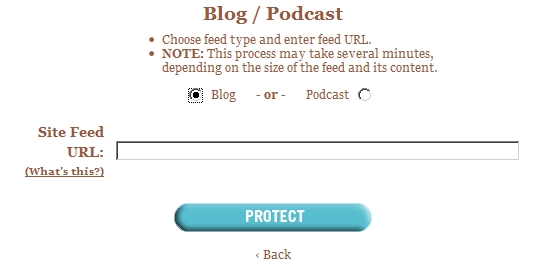
Simply go to your site and copy the address from where you allow readers to subscribe. If you’re a WordPress.com user, your address is likely: http://[blog name].wordpress.com/feed/
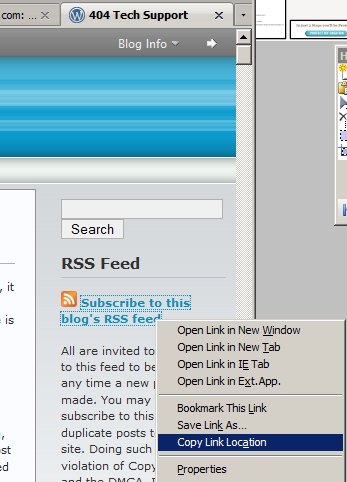
Go back to the MyFreeCopyright.com window and paste in the address you copied and click the Protect button.

You’ll get a confirmation that you’ve registered successfully. At the bottom of the window is some HTML code to put the MyFreeCopyright site button on your page. This is linked to your copyright so people can see all of your copyrighted works. Highlight and copy this code.

Log into your Dashboard/Site Admin page. This step is particular to WordPress.com, but I’m certain there are equivalents in other blog systems. Browse to the Design->Widgets page.

Choose which sidebar you want to add this widget to, Main or right. Scroll down and click on the ‘Show’ button. Then scroll down and click the ‘Add’ link next to Text.
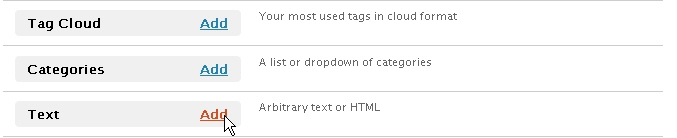
Click on the ‘Edit’ link near the new text that has been added to your sidebar. Add a title to the top line if you want one and then below it, in the bigger section, paste in the code from MyFreeCopyright.

Click the ‘Change’ button and then click the ‘Save Changes’ button. You can move the text around in order to arrange it to where you want it to be. If you do rearrange it, click the ‘Save Changes’ button afterward.

Next check out your page and you may have to refresh it, but you should see your title and the myfreecopyright logo where you positioned it. Click on the button to test it out and see your copyrighted entries at anytime.

You’ll now get e-mails from myfreecopyright around midnight any time you make a new post.