As I reported earlier, the patches for Adobe Acrobat 9.3.2 and Adobe Reader 9.3.2 (Note: There is no such thing as Adobe Acrobat Reader.) are now available for download. When Adobe Reader 9.3.1 came out I wrote an article GPO Deploying Adobe Reader 9.3.1 that documented the process to create an Administration Install Point that allows us to deploy the (then) latest Adobe Reader. Now that 9.3.2 has come out, I figured I’d document the same process for deploying Adobe Acrobat 9.3.2.
Preparation
The process for deploying Adobe Reader 9.3.2 and deploying Adobe Acrobat 9.3.2 is very similar, but the 9.3.1 patch was a Security patch while 9.3.2 is a quarterly update so there are subtle differences. Since 9.3.2 is a Quarterly update and 9.3.1 was a Security update, we’ll have to start from scratch and patch in this sequence (skipping security updates):
Adobe Acrobat: 9.0 -> 9.1 -> 9.1.2 -> 9.2 -> 9.3 -> 9.3.2
You’ll need to download all of the linked files above. Adobe Reader 9.3 is available as an .msi file and 9.3.2 is in .msp format so we can start from that .msi and patch it. With Adobe Acrobat, we’ll have to start from the 9.0 .msi file and patch it 5 times. (Come on, Adobe! Cumulative updates please!)
The Process
Copy your Acrobat 9.0 installation files to a folder where you can work with them. I’m going to make a directory at c:acrobat90. It should look like this:

Open a command prompt and navigate to that folder. Then run the command:
msiexec.exe /a AcroPro.msi

At the Welcome screen, press the Next button so you can choose a Network location. For the location, I would recommend using a new local directory again. I’ll install mine to c:acrobat932 and then click the Install button.

This will run through the installation process and copy the files needed to your new directory. Once the install completes, just press the ‘Finish’ button. Now, copy the .msp files for each of the Acrobat quarterly updates listed above to the directory you just created. Be sure to go into the Properties of any of the .msp files to make sure they’re ‘Unblocked’ or else this security setting will prevent the patching from working correctly. Your directory will look a bit like the following picture.
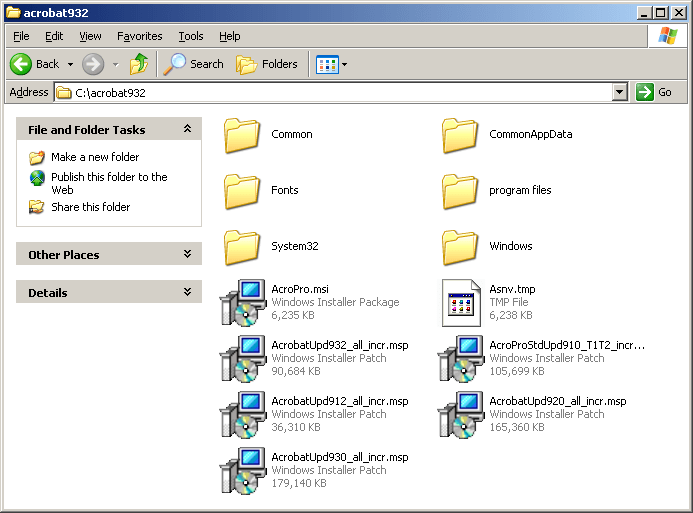
Now, we’ll need to sequentially patch our Acrobat AIP from 9.0 to 9.3.2. To do that, we’ll need to run the slip-streaming command wait for it to complete and then run the next one. Navigate to your new directory. For me that will be C:acrobat932. Then run these commands:
msiexec /a AcroPro.msi /p AcroProStdUpd910_T1T2_incr.msp

This will run the installer again. Click Next to choose where you install the files and choose the same current location. Then let the installation complete. When it finishes, repeat this same step again for the next patches until we’re current. The commands will be:
msiexec /a AcroPro.msi /p AcrobatUpd912_all_incr.msp
msiexec /a AcroPro.msi /p AcrobatUpd920_all_incr.msp
msiexec /a AcroPro.msi /p AcrobatUpd930_all_incr.msp
msiexec /a AcroPro.msi /p AcrobatUpd932_all_incr.msp

Finally, we’ll have our up to date installer. You can delete all of the .msp files out of the directory and then copy the entire directory to the deployment share on your server. Copy over the setup.ini file from your original installation files to your deployment folder if you are going to create a transform. It’s now ready to be deployed.

The Deployment
You can use the Adobe Customization Wizard to choose all the options you want with your deployment including serial number, so run through that quickly to generate your .mst file in the same directory with your organization’s preferences.

Thanks to commenter Jan Schulz, if you’re trying to deploy Adobe Reader 9.3.2, you’ll need to do two steps:
- Use the Adobe Customization Wizard to create a transform.
- Leave ‘Disable all updates’ unchecked under the Online and Acrobat.com Features.

If you do not use a transform or disable updates in the transform, you will receive an error message when trying to install from the .msi or in your deployment that states:
Another version of this product is already installed. The installation of this version cannot continue. To configure or remove the existing version of this product, use Add/Remove Programs on the Control Panel.
In the Adobe Customization, you can also prevent the recently much-talked-about “exploit” that allows a PDF to launch an embedded command or executable.

Once your transform is generated, you can close the Adobe Customization Wizard and open the Group Policy Management console. Create a new group policy or use an old one and edit the GPO. Remove any previous versions of Acrobat from being deployed and add the new .msi package.

After you browse to our recently patched .msi file, you’ll be given options about the deployment method. Select ‘Advanced’ and hit Ok.

I like to change the Name to the current version so users can tell why their machines are updating under the General tab, check to ‘Uninstall this application when it falls out of the scope of management’ under the deployment tab, and assign the AcroPro.mst that we created with the Adobe Customization Wizard 9 under the Modifications tab.
Now your deployment should be all set to go. Make sure you’re restricting the deployment to the computers that you have licenses for. Test it on a few machines to make sure it works well in your organization. The installation may take 10-20 minutes to complete depending on the network and machine speeds.
The Next Time
You and your organization should now be up to date with the latest version of Adobe Acrobat and Adobe Reader, at least for a few months unless a security update comes out before the next quarterly update scheduled for July 13th. From the Adobe Secure Software Engineering Team blog:
Starting with the next quarterly security update for Adobe Reader, currently scheduled for July 13, 2010, we will update the Download Center to offer an installer for the latest version of Adobe Reader for the English, German, Spanish, Japanese and French language versions for Windows, and the English version for the Mac.
Also be sure to check out Adobe’s new Enterprise Administration of the Acrobat Family of Products page for resources to a lot of related information.
If you have any questions or problems, feel free to ask in the comments.